How to Set Any Song as Your Alarm on iPhone
The short answer
Wake up to any song you actually like
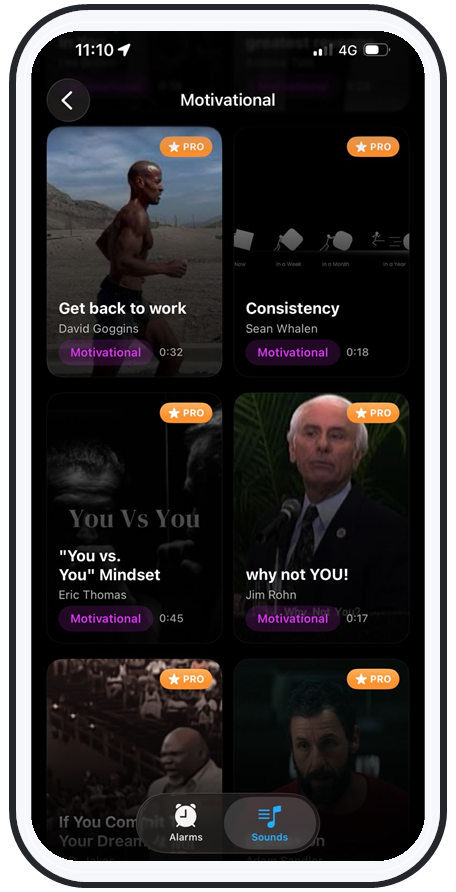
Short answer: the iPhone's built-in Clock app can only use its own ringtones, so to set a real song as your alarm you need a dedicated app. In AlarmiFex you pick any song (or record your own voice), trim it to the exact part you want, push it above system volume, and save — and it downloads so it still rings on silent and offline.
Waking up to a buzzer you've hated for years is a miserable way to start the day — and for heavy sleepers, a tone your brain has tuned out simply doesn't work anymore. The good news: setting up a custom song alarm on iPhone takes about two minutes. Here's exactly why the stock Clock app makes it hard, and the step-by-step way to do it properly.
The catch
Why the stock Clock app won't play your song
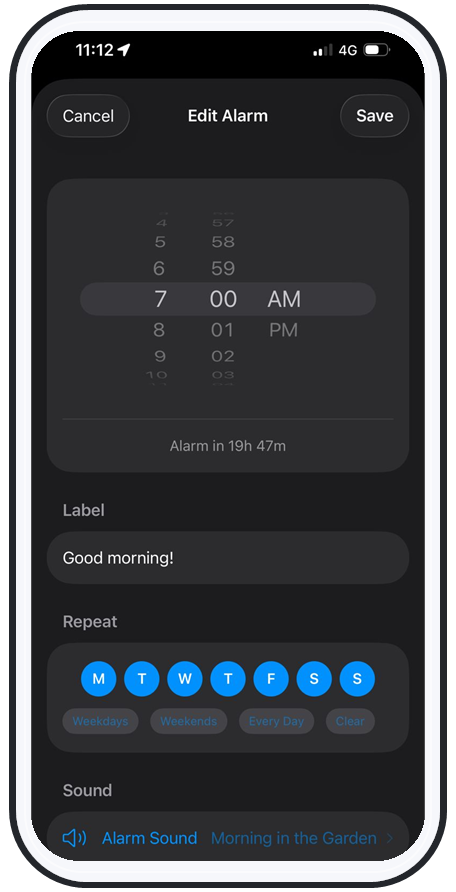
Open the Clock app, tap an alarm, and "Sound" only shows Apple's built-in ringtones plus any tones you've bought through iTunes. There's no "choose a song" option, and for good reason: tracks from Spotify and Apple Music are DRM-protected streaming files, not plain audio sitting on your phone, so iOS blocks them from being used as a ringtone.
People try the GarageBand-and-iTunes ringtone workaround, but it's fiddly, capped at 30 seconds, and breaks every few iOS updates. Worse, any alarm that streams a track will go silent the moment you lose connection. The reliable answer is an app that downloads the audio to your device — which is the whole point of the steps below.
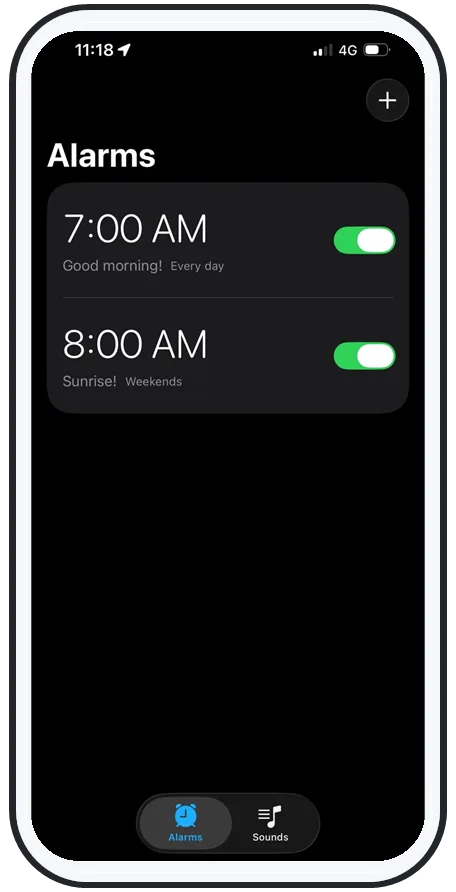
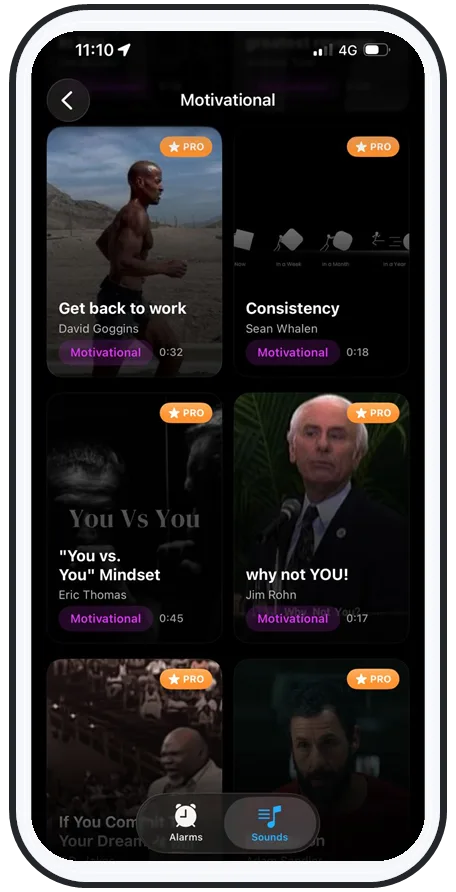
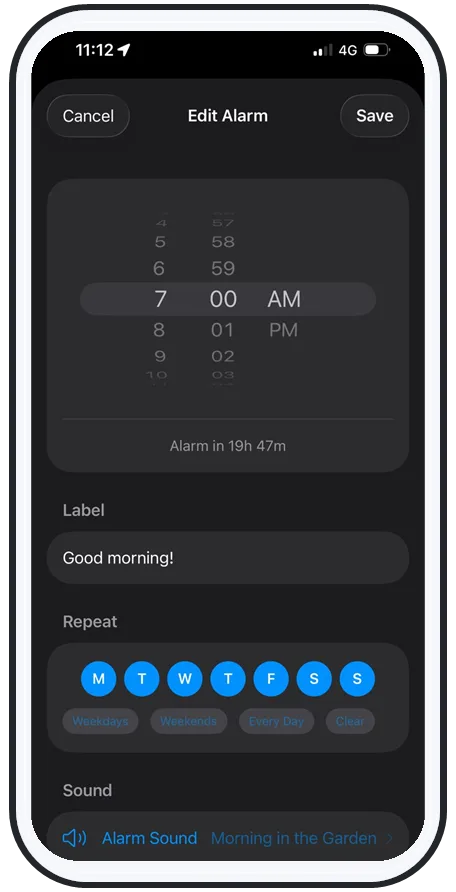
Swipe to see more
Step by step
Set a song as your alarm in about two minutes
Here's the whole flow in AlarmiFex on the App Store:
- Create a new alarm and set your wake time.
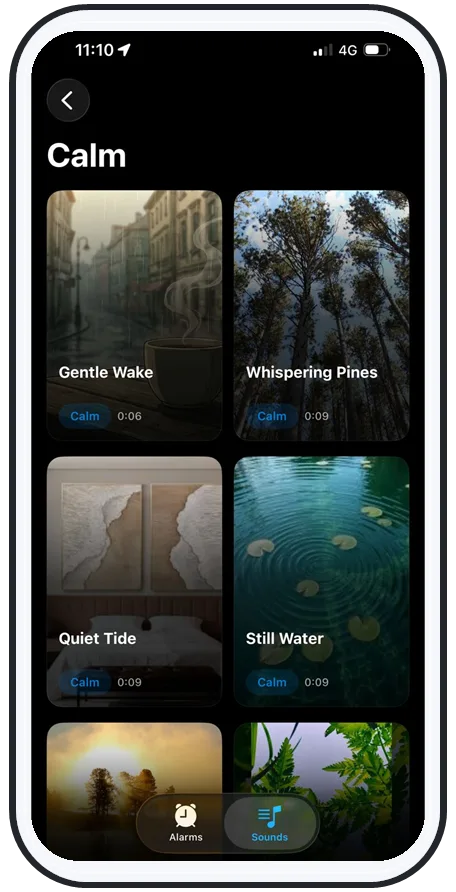
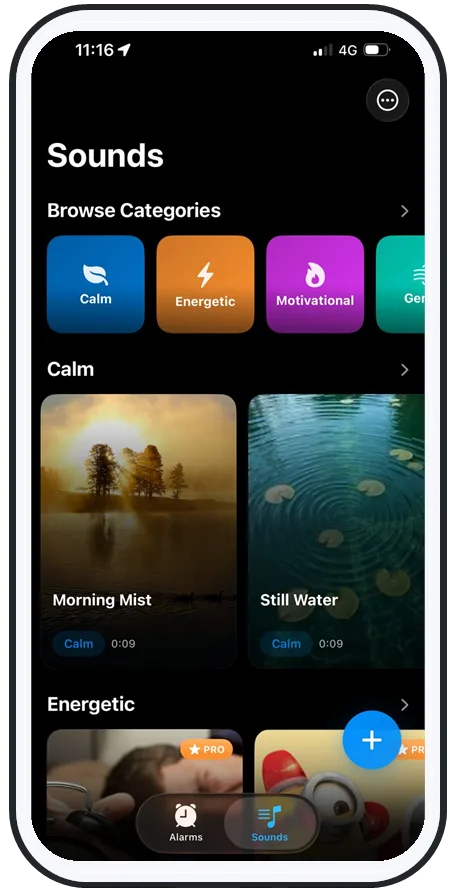
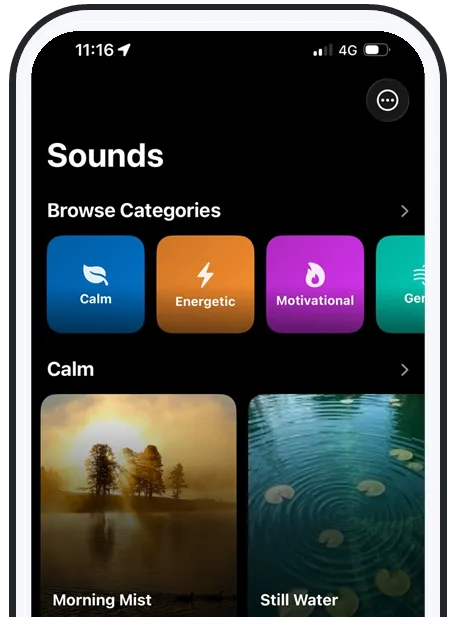
- Pick a song from the library — or tap record to use your own voice or a message.
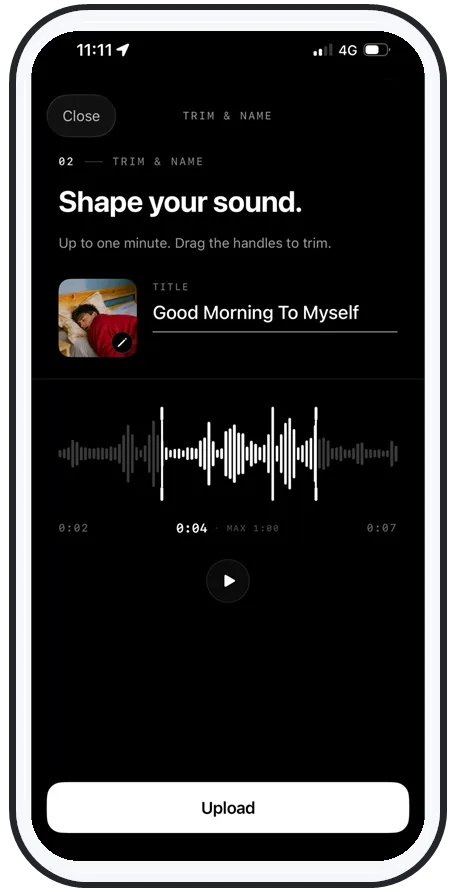
- Trim it to the exact part you want playing first.
- Set it above system volume so it's louder than the normal ringer.
- Save. The audio downloads to your phone so it works offline.
That's it — no GarageBand, no syncing through a computer. Prefer waking to a message instead of music? See wake up to your own voice, which uses the same recorder.
The detail that matters
Trim to the drop, not the slow intro
This is the step most people skip — and the one that decides whether a song actually wakes you. Many tracks open with a quiet 15–20 second intro. If your alarm starts there, you'll sleep right through the part that was supposed to wake you. AlarmiFex lets you trim the audio before saving, so the alarm begins on the drop, the chorus, or the first loud beat.
The same trimmer works on your own recordings, so a voice alarm can open with the loudest, most insistent line instead of a soft "okay, time to wake up." Pick the moment that gets you out of bed, and start the alarm there.
For heavy sleepers
Make it louder than your iPhone normally allows
A song you love still won't help if it can't get loud enough. iOS caps alarm playback at the system volume, which many heavy sleepers sleep straight through. AlarmiFex can push your custom song above that ceiling, so the track ramps past the normal limit and is genuinely hard to ignore.
Pair the extra volume with a sound your brain hasn't tuned out yet, and rotate it occasionally so habituation never sets in. If volume is your main problem, the loudest alarm app guide goes deeper on above-system-volume alarms.
Why it actually rings
Downloaded, so it works on silent and offline
Here's the reliability piece streaming alarms get wrong. Because AlarmiFex downloads your chosen song to the phone and schedules it through Apple's AlarmKit, the alarm goes off on silent, on Do Not Disturb, on Focus, on the lock screen, and with no internet connection. Airplane mode, dead Wi-Fi, a dropped signal at 5am — none of it matters, because nothing needs to load.
That's the difference between a fun custom alarm and one you can actually trust for a shift or a flight. See how the features fit together, or browse the best alarm apps for heavy sleepers to match an app to your own wake-up problem.
Frequently asked questions
Can you set a song as your alarm on iPhone?
Yes. The stock Clock app only lets you choose from its built-in ringtones and tones you've bought through iTunes, so you can't simply point it at a Spotify or Apple Music track. To wake up to any song you want, use a dedicated alarm app like AlarmiFex: pick the song (or record your own voice), trim it to the part you want, set it above system volume, and save. The sound downloads so it still rings on silent and offline.
Why can't I set a Spotify or Apple Music song as my alarm in the Clock app?
Streaming tracks from Spotify and Apple Music are DRM-protected and aren't stored as plain files on your phone, so iOS won't let the Clock app use them as a ringtone. Streaming-based alarms also fail when there's no connection — the track never loads and the alarm stays silent. AlarmiFex avoids this by downloading the chosen audio to your device so it plays reliably even with no signal.
Can I trim a song so my alarm starts at the drop?
Yes. In AlarmiFex you can trim the audio before you save it, so the alarm begins on the exact part that wakes you — the drop, the chorus, or the first loud beat — instead of a slow 20-second intro you'll sleep right through. The same trimmer works for your own recorded voice.
Will a custom song alarm still ring on silent or offline?
With AlarmiFex, yes. The song is downloaded to your phone and scheduled through Apple's AlarmKit, so it rings on silent, on Do Not Disturb, on Focus, on the lock screen, and with no internet connection. It also plays above the system volume ceiling, which matters if you're a heavy sleeper.
Try an alarm that actually goes off
AlarmiFex wakes you to any song or your own voice — extra loud, even on silent, even offline.